How do I document my Power Automate flows? It comes up in every Power Platform community forum I...
How do I document my Power Automate flows? Same forum question as Posts 1 and 2, third answer.
This is the third version of the same documentation pattern. The output is now a real SharePoint Site Page per flow, plus a row in FlowDocsInventory. The agent still reads the flow definitions through FlowStudio MCP, but it publishes pages through a Power Automate dispatcher flow instead of writing SharePoint pages directly.
Post 1 used an IDE and a service principal. Post 2 stayed in Copilot Studio but produced Word docs in a document library, because Work IQ SharePoint can't write Site Pages. This post fills that gap. The agent does not get open-ended SharePoint write access; it gets one approved flow with eight named operations.
The meta detail: I had the agent build the dispatcher flow itself, using FlowStudio MCP. Same agent, same MCP server, used in the other direction. Reading flows on the way in, writing a flow on the way out.
What it took:
- One Power Automate flow with eight cases routed by an
actionClosed List input - Three tools wired into the Copilot Studio agent: the dispatcher flow (for Site Pages writes), Work IQ SharePoint (for the FlowDocsInventory list updates, same as Post 2) and FlowStudio MCP (to read flow definitions).
- One tool description rich enough that the agent picks the right action without per-input prompting
The agent built the flow itself with FlowStudio MCP. I added the tool description, fixed one Workflow Definition Language expression bug along the way, and pointed the agent at SharePoint.
The architecture in one line:
|
Agent
Copilot Studio
|
→ |
Read
FlowStudio MCP
flow definitions
|
→ |
Write
Dispatcher flow
Site Pages
|
→ |
Write
Work IQ
inventory rows
|
One agent, three tools, two write surfaces. Each Site Page write goes through the dispatcher flow; each inventory row goes through Work IQ.
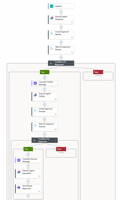
The dispatcher flow the agent built
One flow, eight actions, one action string input that routes to the right SharePoint Pages REST endpoint. Five optional inputs (pageId, pageName, pageTitle, pageHtml, pageContent) cover every parameter shape the endpoints need. Note that pageContent is a special case: it carries the verbatim description "INTERNAL FIELD - DO NOT ASK USER. Always pass empty string." in the trigger schema. More on why in the per-input configuration section. Flow GUID b691d18e-7d70-4e32-95c8-ccd2e01850e7, display name MCP Demo Agent Flow - Site Pages v2, built by Claude through FlowStudio MCP and added to a solution so Copilot Studio could find it.
In the designer, this is the "When an agent calls the flow" trigger. In the flow definition it appears as Request with kind: Skills. That's what makes the flow available as an agent-flow tool in Copilot Studio; a generic HTTP request trigger will not show up the same way.
The eight actions and the REST endpoints behind them:
| Action | Purpose | Method | Endpoint |
|---|---|---|---|
| List | Find existing pages on the site (pre-flight before Create or Modify) | GET | _api/sitepages/pages?$select=Id,Title,FileName,PageLayoutType,Modified&$orderby=Modified desc&$top=100 |
| Read | Fetch one page's full record (metadata + canvas content) | GET | _api/sitepages/pages({pageId}) |
| Create | Make a new page from your HTML (body example below) | POST | _api/sitepages/pages |
| Checkout | Lock the page so edits commit cleanly | POST | _api/sitepages/pages({pageId})/checkoutPage |
| Modify | Patch title and/or canvas. Smart-merge: only fields you pass get updated (body example below) | PATCH extra header: IF-MATCH: * |
_api/sitepages/pages({pageId}) |
| Publish | Promote the checked-in version to what readers see | POST | _api/sitepages/pages({pageId})/publish |
| Discard | Abort an in-flight edit, revert to last published | POST | _api/sitepages/pages({pageId})/discardPage |
| Recycle | Soft-delete the page (recoverable from recycle bin) | POST | _api/web/getfilebyserverrelativeurl('/sites/MCPDemo/SitePages/{pageName}.aspx')/recycle |
Request bodies for Create and Modify (the only two actions that send a body):
▸ Create body
{
  "Title": "MCPDemo Upload Approval",
  "FileName": "flowdocs-upload.aspx",
  "PageLayoutType": "Article",
  "CanvasContent1": [
    {
      "controlType": 4,
      "position": {
        "layoutIndex": 1, "zoneIndex": 1,
        "sectionIndex": 1, "sectionFactor": 12,
        "controlIndex": 1
      },
      "addedFromPersistedData": true,
      "editorType": "CKEditor",
      "id": "<guid>",
      "innerHTML": "<p>Page HTML</p>"
    },
    {
      "controlType": 0,
      "pageSettingsSlice": {
        "isDefaultDescription": true,
        "isDefaultThumbnail": true
      }
    }
  ]
}
▸ Modify body (smart-merge: pass only what you want to change)
{
  "Title": "Updated title",
  "CanvasContent1": [
    {
      "controlType": 4,
      "position": { "...": "..." },
      "editorType": "CKEditor",
      "id": "<guid>",
      "innerHTML": "<p>Updated HTML</p>"
    },
    {
      "controlType": 0,
      "pageSettingsSlice": { "...": "..." }
    }
  ]
}
|
Default headers: every endpoint sends Modify needs IF-MATCH: * so it overwrites whatever's currently checked in, regardless of etag. Without that header you'd hit 412 Precondition Failed on every Modify call. Recycle is the outlier: the CanvasContent1 on the wire: shown above as a JSON array for readability. SharePoint actually expects it as a JSON-encoded string; the SharePoint connector in Power Automate handles that stringification for you. |
One detail worth surfacing: the first Build_Canvas_Create action failed deploy with InvalidTemplate. The agent traced the cause itself:
Found the root cause: my expressions use
createObject(...)which isn't a valid Power Automate function. (It's Power Fx, not Workflow Definition Language.) That's whyBuild_Canvas_Createfailed withInvalidTemplate. Need to rewrite usingsetProperty(json('{}'), key, value)chains instead.
▸ Body expression on Create after the WDL fix
@setProperty(setProperty(setProperty(setProperty(json('{}'),
  'Title', coalesce(triggerBody()?['pageTitle'], '')),
  'FileName', if(endsWith(...), ..., concat(..., '.aspx'))),
  'PageLayoutType', 'Article'),
  'CanvasContent1', outputs('Build_Canvas_Create'))
That's the actual Body expression on Create after the rewrite: four nested setProperty calls building the JSON SharePoint expects. Useful reminder that Power Fx and WDL look similar and aren't interchangeable inside flow expressions. The flow also auto-appends .aspx on pageName for Create and Recycle, and Modify is smart-merge: it only patches the fields the agent provides, so partial updates work without round-tripping the whole canvas.
One flow, one tool, eight endpoints behind a single action Closed List: that's the entire dispatcher.
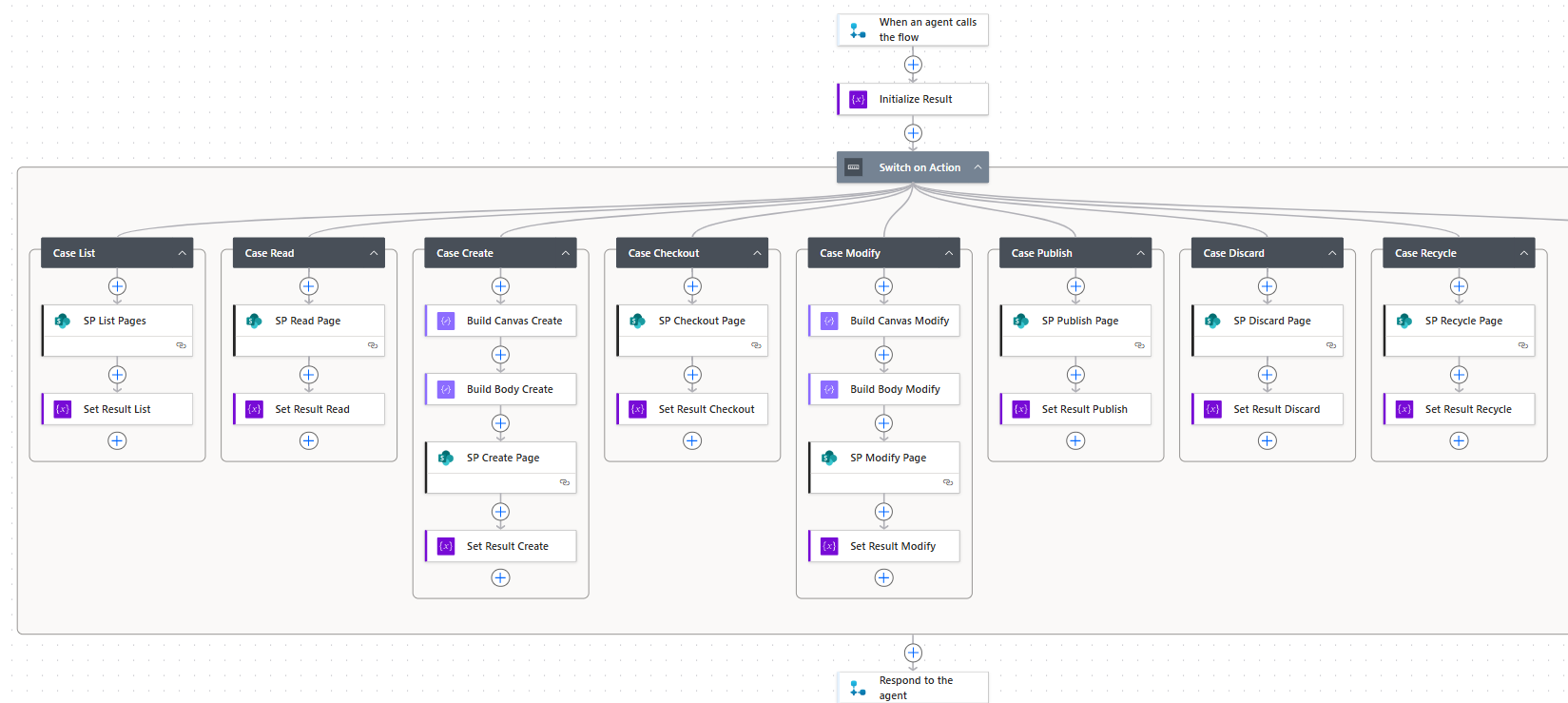
Switch on Action, eight cases, one case per SharePoint REST operation.The natural lifecycle the agent chains is:
|
Create
|
→ |
Checkout
|
→ |
Modify
|
→ |
Publish
|
Happy path. Discard branches off Modify when the agent needs to abort an in-flight edit. List + Read are the pre-flight reads. Recycle is soft-delete, separate from the edit cycle.
What the agent did
Once the flow was deployed and added to a solution, I wired it into a Copilot Studio agent and gave it one prompt covering all three flows:
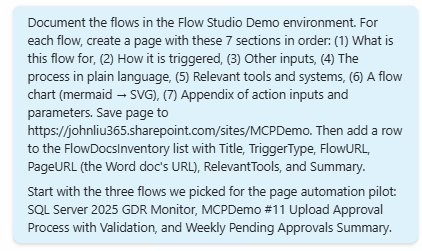
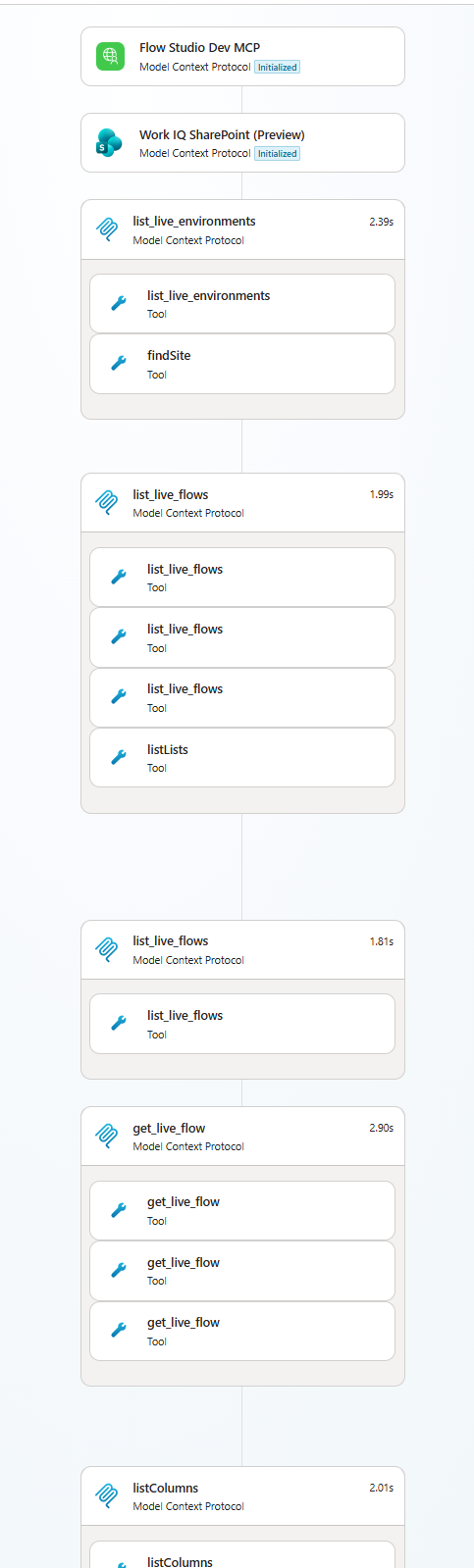
The agent worked through it in passes, every tool call showing up in the reasoning sidebar.
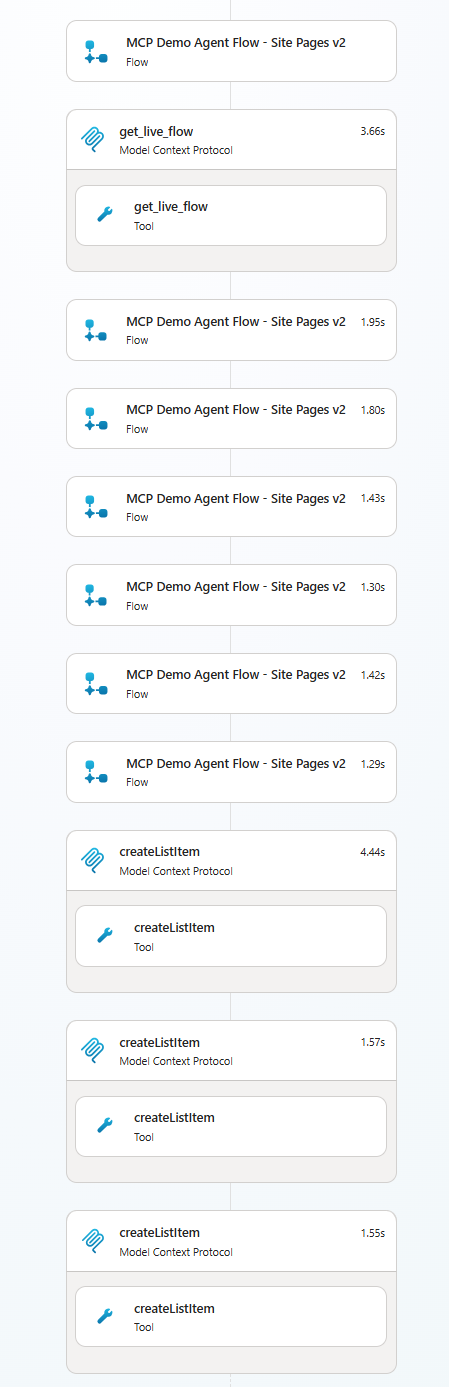
Three pages landed on MCPDemo with matching rows in FlowDocsInventory. The agent's final summary card:
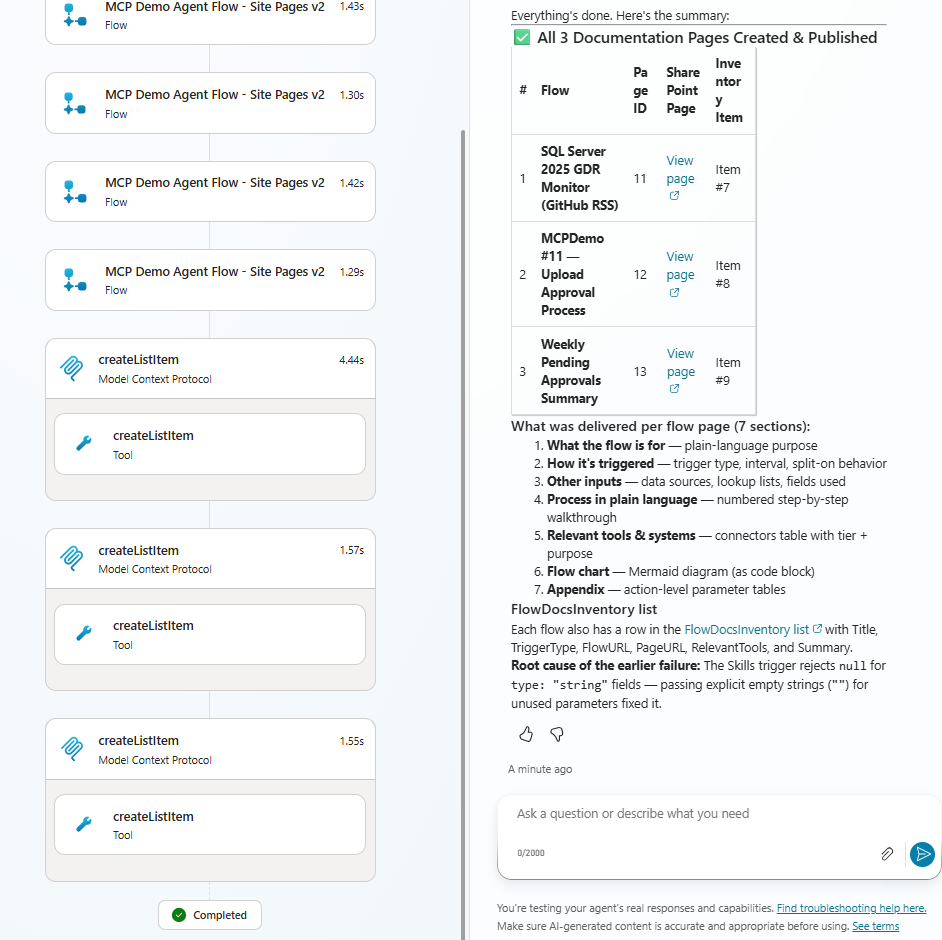
One real-world detail to flag: my MCPDemo Site Pages library has page moderation enabled, so all three of these landed in Pending approval, not Published. Calling Publish through SharePoint REST does not bypass moderation. If your library has approval enabled, the agent's Publish call will succeed but the page won't be live until someone hits 'Approve' in the SharePoint UI. Worth knowing before you wire this into a customer-facing site.
Wiring it into Copilot Studio
Adding the flow to a solution is one MCP call: add_live_flow_to_solution. The flow has to live in the same environment as the Copilot Studio agent; Copilot Studio's tool picker won't reach across environment boundaries.
Heads-up: Copilot Studio's tool wizard auto-adds only the required schema property (the action input). The 5 optional inputs (pageId, pageName, pageTitle, pageHtml, pageContent) sit in a "+ Add input" dropdown until you click each one explicitly. Skip this and the agent literally cannot pass those fields.
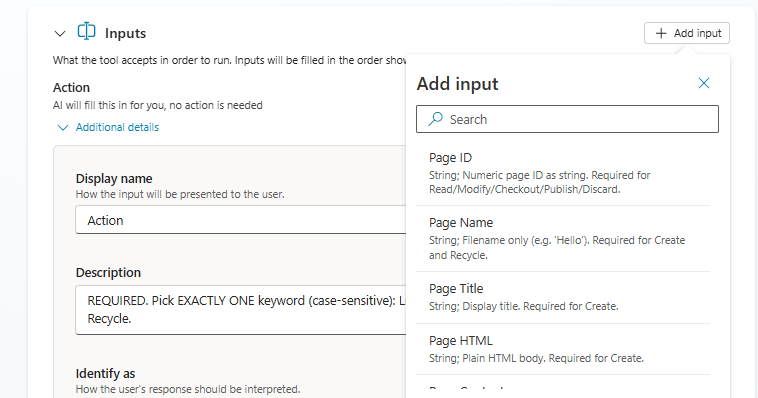
Figure: The dispatcher flow's inputs as the agent sees them: an Action keyword (pick exactly one) plus Page ID, Page Name, Page Title, and Page HTML, each described so the agent fills them correctly.
The setup is three parts. All three are required, not alternatives.
Part 1: Schema and tool description (deploy-time)
The trigger schema and the tool description give the agent's planner enough context to pick the right action and fill the right inputs without prompting the user.
- The
actioninput is a Closed List with the 8 keywords (List, Read, Create, Checkout, Modify, Publish, Discard, Recycle). Required. - The 5 optional inputs each get a description that helps the planner decide when to fill them.
pageContentgets the verbatim hint "INTERNAL FIELD - DO NOT ASK USER. Always pass empty string." baked into its trigger-schema description. That single line is what stops slot-filling from ever prompting the user for it.- The tool description (a separate paragraph the agent reads at planning time) explains routing per action.
The description I use looks roughly like this:
▸ Tool description (Copilot Studio reads this)
SharePoint Pages dispatcher for the MCPDemo site. Use this tool to List, Read, Create, Modify, Checkout, Publish, Discard, or Recycle modern Site Pages. The action input is required and must be one of those eight values.
For Create, pass pageName (short page name, .aspx is added automatically), pageTitle, and pageHtml. Do not pass pageContent; the flow handles that internally.
For Read / Modify / Checkout / Publish / Discard, pass pageId. For Recycle, pass pageName. Modify is a smart-merge: only the fields you pass are patched.
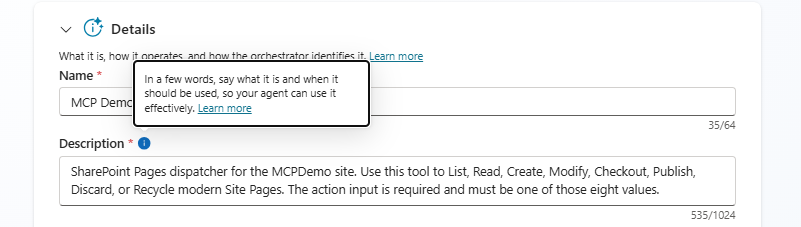 Figure: The dispatcher tool's name and description: one sentence on what it does and the eight allowed action values, so the agent knows when to call it.That description plus the
 action Closed List is enough for the agent to plan correctly. It is not, on its own, enough for runtime to behave. Layer 2 is what makes the runtime actually quiet.
Part 2: Per-input config in Copilot Studio's tool wizard
This is the part the docs don't make obvious. After the schema and description are right, the agent will still misbehave (asking the user for inputs the planner could fill, or stuffing the whole prompt into one slot) until each input is configured manually in the tool wizard. The schema's required array is purely informational here; the per-input toggles are what actually controls runtime.
Verbatim from my own build notes, with the most-skipped step in bold:
|
It is a bit cumbersome to configure Page ID, Name, Title, HTML, Content to be left blank. The trick: Action - make 'Identified as' a custom entity as a closed list with the actions we allow. The rest - in Advanced, make: And very importantly, set Should prompt user to ticked, save, and set to unticked and save again. |
Broken down:
For the action input:
- Identify as: create a Closed List entity called
PageActionwith the 8 keywords (List, Read, Create, Checkout, Modify, Publish, Discard, Recycle) as items, bind here. Do not leave it as "User's entire response". That stuffs the whole prompt into theactionslot and the trigger schema rejects withTriggerInputSchemaMismatch.
For each of the 5 optional inputs (pageId, pageName, pageTitle, pageHtml, pageContent):
- Click "+ Add input" to add it to the tool config (only
actionauto-adds). - Required should be OFF. You can't toggle from here, but if you see Required is on, you should check your flow's schema if it is accidentally created as Required for these fields. If so, you should temporarily remove the flow as a tool, and fix it in the Power Automate flow and re-add the tool.
- Identify as: user "User's entire response".
- Should prompt user (the save-cycle, CRITICAL): tick Should prompt user → click Save → untick Should prompt user → click Save again. Both saves are required. Without the double-save, the unticked state does not persist and Copilot Studio keeps prompting the user for inputs the agent should fill silently. In my tenant, this save-cycle was the step that made it stick. I have not seen it documented officially; it is what worked. This is the step most people skip; it is also the step most likely to make you think your config is broken.
- How many reprompts: 0 / "Don't repeat".
- Action if no entity found: "Set variable to empty (no value)".
Part 3: One line in the agent's system prompt
Even with Layers 1 and 2 done correctly, the agent will sometimes defer back to the user when asked to "compose" or "come up with" page content. To stop that, append one line to the agent's instructions (Overview → Instructions):
When the user asks you to compose, write, draft, or "come up with" page content, you MUST author the HTML yourself. Never ask the user to provide HTML.
Schema and tool description, plus per-input config including the save-cycle, plus the system-prompt nudge. All three. The save-cycle is the part most people skip and it's the most common reason a Skills-flow tool keeps prompting the user when the agent should be filling everything silently.
|
If you take one thing from this post Agent calls a flow. Flow does the writes. The dispatcher pattern lets a Copilot Studio agent reach SharePoint Site Pages through a narrow, approved set of operations: |
Where else the dispatcher pattern fits
I built this for documentation, but the pattern is general. Any time a Copilot Studio agent needs to reach a Microsoft 365 surface through a narrow, approved set of operations, instead of getting open-ended write access, the same shape applies. Concrete examples:
- Release notes. Agent reads recent commits, PRs, or build artifacts via MCP, publishes a per-release Site Page on a fixed cadence.
- Governance and compliance pages. Agent generates control-evidence pages from system audit data on a schedule, posts them where reviewers expect.
- Customer summaries. Agent reads CRM or support data, publishes a status page per account or per quarterly review.
- SOP and runbook updates. Agent maintains procedure pages when underlying systems or steps change, instead of letting docs drift.
- Internal wiki maintenance. Agent keeps wiki pages aligned with source documents (architecture diagrams, decision logs, design specs).
The dispatcher isn't specific to Site Pages either. Wrap any Microsoft 365 surface with a narrow flow (Teams channels, Outlook calendar, Planner, Dataverse, Approvals) and the same pattern lets a Copilot Studio agent reach it without inheriting open API access. Define the operations you'll allow. Expose them as one Power Automate flow. Give the agent the flow as a tool. The vocabulary changes per use case; the shape doesn't.
|
Security note. The dispatcher flow is a write surface. Limit who can use the agent, keep the Authentication context. SharePoint writes run through the flow's connection configured for the dispatcher. Check whether your agent uses end-user or maker-provided credentials before sharing it broadly. That determines whose SharePoint permissions actually authorize the writes. |
Try it in your tenant
- Build the dispatcher flow. Tell your agent to create this flow. Trigger: When an agent calls a flow (
Requestwithkind: Skills- the Copilot Studio Skills trigger). Body: a Switch on theactioninput, fanning out to eight HTTP-with-Microsoft-Entra-ID calls. Seven hit_api/sitepages/pagesendpoints; Recycle hits_api/web/getfilebyserverrelativeurl(...)/recycle. - Add the flow to a solution. Ask the agent to call
add_live_flow_to_solution, or do it manually through Solutions in the maker portal. - Add three tools to the agent. Wire the dispatcher flow as a Copilot Studio tool. Also add Work IQ SharePoint as a second tool, scoped to your inventory list (same as Post 2) and FlowStudio MCP.
- Test with a real prompt in the test pane. "Create a page called Release-Notes-Apr with content <h2>What shipped</h2>..." is a good first call. Watch it land, then refresh Site Pages.
- Watch the limits. Copilot Studio agent-flow tools have a 100-second action limit, so the dispatcher should perform one page operation per call and return quickly. Each agent-flow action also consumes Copilot Studio capacity, so batch page generation should start with a small set before scaling.
For a developer-first read path, see Post 1, where I also talk about when PAC CLI may be enough.
What I'd love to hear
If you build this and watch the runs, I'd love to hear which action the agent reaches for first on its own. There's a real chance the system prompt and the tool description both nudge it toward List as a safety check before mutating anything. Also worth comparing notes on: how much of the per-input config you really needed once the tool description was good enough.
About FlowStudio MCP: FlowStudio MCP is a Model Context Protocol server that gives AI agents action-level visibility into Power Automate, including the ability to deploy flows and add them to solutions. It's listed on GitHub's awesome-copilot. Works with Microsoft Copilot Studio, GitHub Copilot, Claude, and any MCP-compatible agent.
Related reading:
- Document Power Automate flows with GitHub Copilot, Claude, or Codex (Post 1)
- The same job, no IDE: documenting Power Automate flows from inside Copilot Studio with Work IQ (Post 2)
- How to plug a custom MCP server into Microsoft Copilot Studio in 5 minutes
Catherine Han, FlowStudio