
Set Up FlowStudio MCP in Microsoft 365 Copilot Cowork
Microsoft 365 Copilot Cowork can talk to your Power Automate flows through FlowStudio MCP. An admin deploys the plugin once, and it shows up for everyone in the organization: no per-user install. This page covers both sides: the admin deployment, then what each user does in Cowork.
| The short version: An admin deploys FlowStudio MCP Copilot Cowork from the Microsoft Marketplace. Admin-deployed plugins are automatically available to users: nobody else has to install anything. Each user then signs in once at mcp.flowstudio.app to claim the free Starter plan, and switches the plugin on in Cowork. |
Before you start
- A FlowStudio MCP plan. The free Starter plan is set up automatically the first time you use the plugin: no signup, no API key.
- A Microsoft 365 Copilot Cowork license.
- For the deployment step: a Microsoft 365 admin who can deploy integrated apps. If that’s not you, send this page to whoever runs your tenant.
The plugin is multi-tenant: it works in any Microsoft 365 organization.
Part 1, Admin: deploy the plugin
You only do this once for the whole organization.
- Open the Marketplace listing: FlowStudio MCP Copilot Cowork.
- Click Get it now. You’ll be redirected to the Microsoft 365 admin center: the Integrated apps page.
If you don’t have the direct link, search the Marketplace for “FlowStudio” and pick the FlowStudio MCP Copilot Cowork tile.
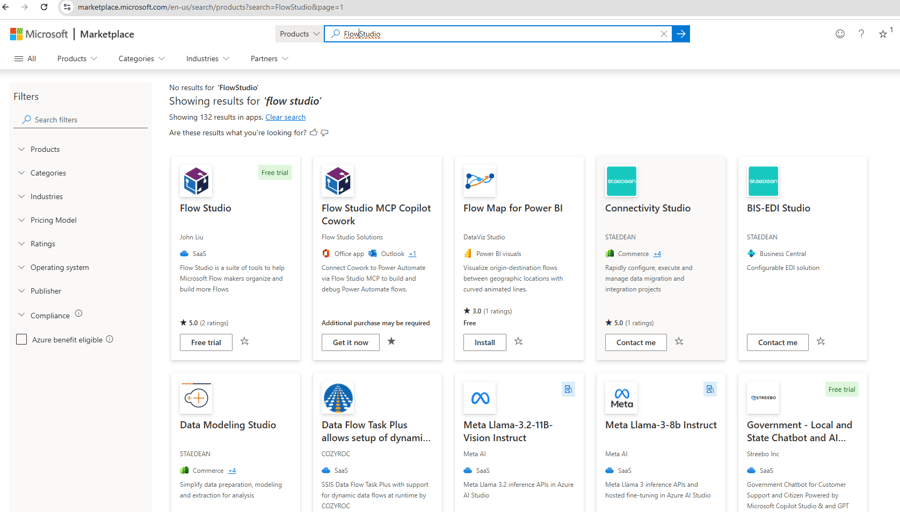 Figure: Marketplace search for FlowStudio: pick the FlowStudio MCP Copilot Cowork tile.
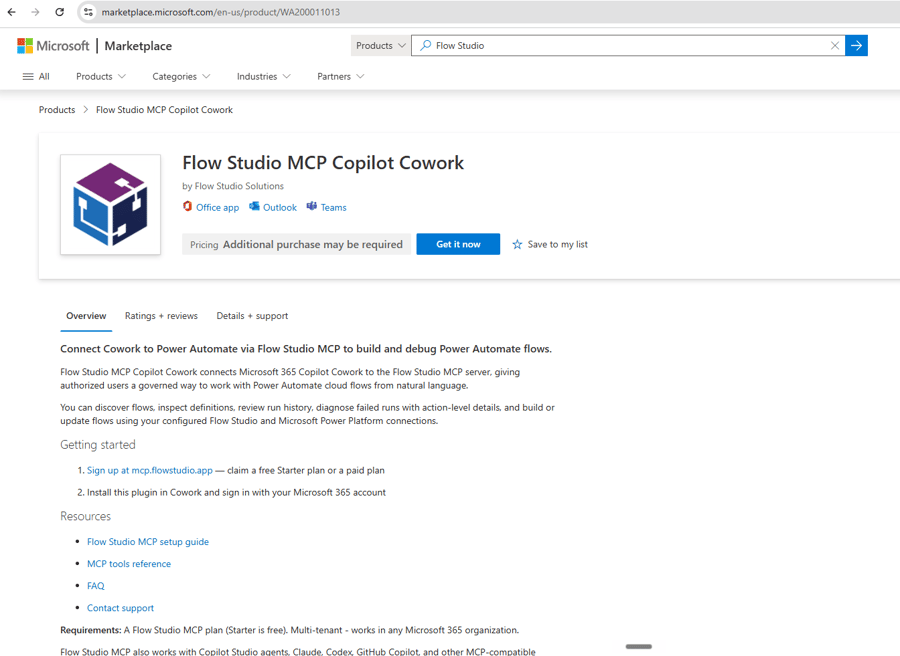 Figure: The FlowStudio MCP Copilot Cowork listing; Get it now opens the Deploy New App wizard.
- The Deploy New App wizard opens with FlowStudio MCP Copilot Cowork already selected. Work through the three steps: Configuration → Users → Deployment.
- On Configuration, confirm the app, then click Next.
- On Users, choose who gets it: the whole organization, specific groups, or just yourself for a test, then Next.
- On Deployment, accept the permissions and finish.
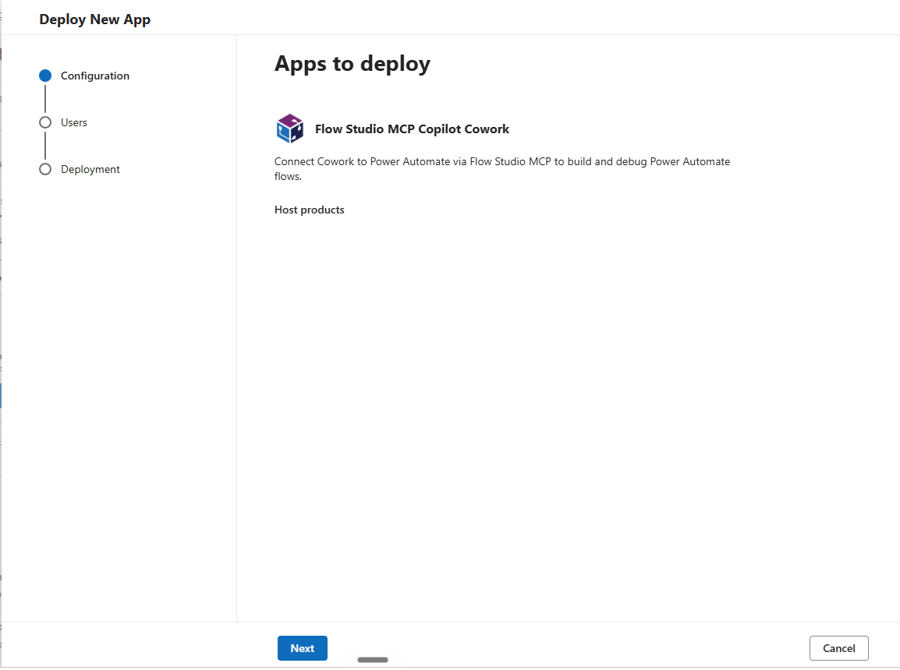 Figure: The Deploy New App wizard with the plugin selected; choose who gets it, then accept the permissions.
Once it’s deployed, you’ll find it in the admin center under Agents > Tools with the status Available. That confirms the plugin is live for the users you assigned.
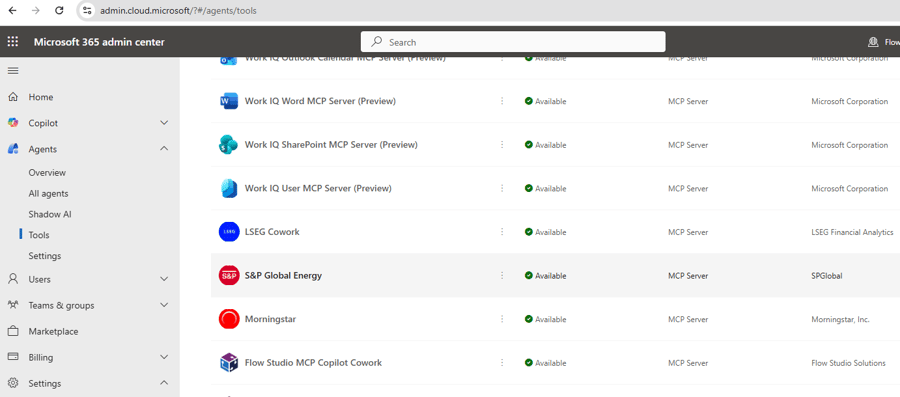 Figure: The admin center Tools list showing FlowStudio MCP Copilot Cowork with status Available.
| Deployment can take a little while to roll out across the tenant. If a user doesn’t see the plugin in Cowork yet, give it some time and have them refresh. |
Part 2, User: turn it on in Cowork
Once your admin has deployed it, the plugin is already there for you. You just switch it on.
- Open Cowork and open the plugin picker (the + in the message box, then the plugin list).
- Find FlowStudio MCP Copilot Cowork and toggle it on.
- Sign in with your Microsoft 365 account when prompted.
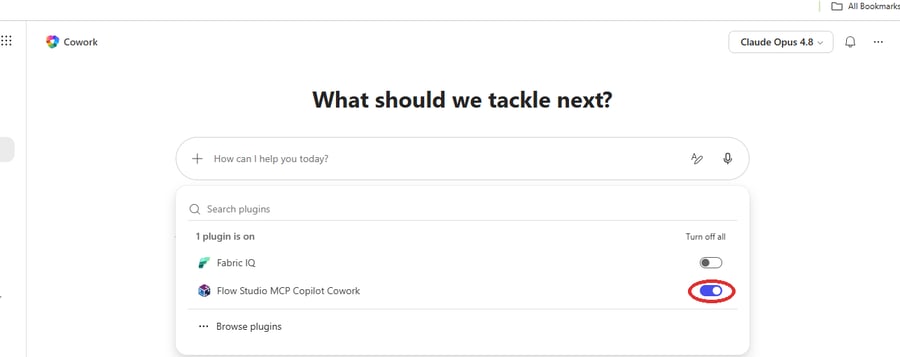 Figure: In Cowork, find FlowStudio MCP Copilot Cowork in the plugin picker and toggle it on.
First-run permission. The first time you ask Cowork to touch a flow, Microsoft shows a one-time permission prompt: approve it. Your free Starter plan is set up automatically, so there is no dashboard step and no API key. Admins: if you are the first to use it (or you sign in on that prompt), tick Consent on behalf of your organization and no one else in your tenant is prompted.
That’s it. Now you can ask Cowork to work with your flows in plain language, for example:
- “List my Power Automate flows.”
- “Why did my invoice flow fail this morning?”
- “Show me the inputs and outputs of the last failed run.”
Cowork reads run history, inspects action-level inputs and outputs, and can build or update flows through your FlowStudio and Power Platform connections.
Troubleshooting
|
Other ways to use FlowStudio MCP
This plugin is the Microsoft 365 Copilot Cowork integration. FlowStudio MCP also works with Copilot Studio agents, Claude, Codex, GitHub Copilot, and any MCP-compatible client via direct configuration: see Getting Started with FlowStudio MCP.
Related guides
- Copilot Cowork can act on systems it has no plugin for: the helper-flow execution-layer pattern
- Microsoft Copilot Cowork now handles my Gmail and Google Sheets: a real task end to end, with screenshots
- Which AI agent should you use with FlowStudio MCP?: Cowork vs IDE agents vs Copilot Studio
- Getting Started with FlowStudio MCP: Setup for all agents (Copilot Studio, GitHub Copilot, Claude, Codex)
- Debug Power Automate Flows with MCP: Find the real root cause of a failed run
- Build Power Automate Flows with MCP: Create and update flows from plain English
- MCP Tools Reference: Complete tool catalog