I have been using AI agents to build Power Automate flows. OpenClaw, specifically. Flows are JSON....
Microsoft 365 Copilot, calling get_live_flow_runs on a real Power Automate flow. Inspecting action inputs and outputs at the trigger level. Printing a per-flow verdict table that traces root causes back to the source data.
Copilot Studio supports custom MCP servers as tools. This post shows how to connect FlowStudio MCP to a Copilot Studio agent so it can debug Power Automate flows at the action level: read per-action error breakdowns, inspect action inputs and outputs including loop iterations, and trace root causes back to source data. Five-step setup inside Copilot Studio, no code. Includes a real debug session with every MCP tool call visible on screen.
This is not a standard Copilot Studio capability. Plain Copilot Studio has no action-level visibility into Power Automate. Microsoft shipped Model Context Protocol (MCP) server support in Copilot Studio (public preview March 2025, generally available May 2025 at Build), so you can plug in a custom MCP server and give the agent exactly the tools it's missing. The one in this post is FlowStudio MCP, a Power Automate MCP server I built. It exposes about 15 tools covering environments, flow definitions, run history, action inputs and outputs, connections, and deploy operations.
Setup (5 steps, ~5 minutes)
Full walkthrough: getting-started guide. Short version for Copilot Studio:
- Open copilotstudio.microsoft.com, create or open an agent, go to Tools.
- Click + Add a tool, pick Model Context Protocol from the Create new row.
- Fill the form: Server URL
https://mcp.flowstudio.app/mcp, Authentication = API key, Type = Header, Header name =x-api-key(lowercase with hyphen). Click Create. - In the Test pane, send "List my Power Platform environments." Paste your API key from the dashboard when prompted.
- Click Publish, pick Microsoft Teams and Microsoft 365 Copilot channels.
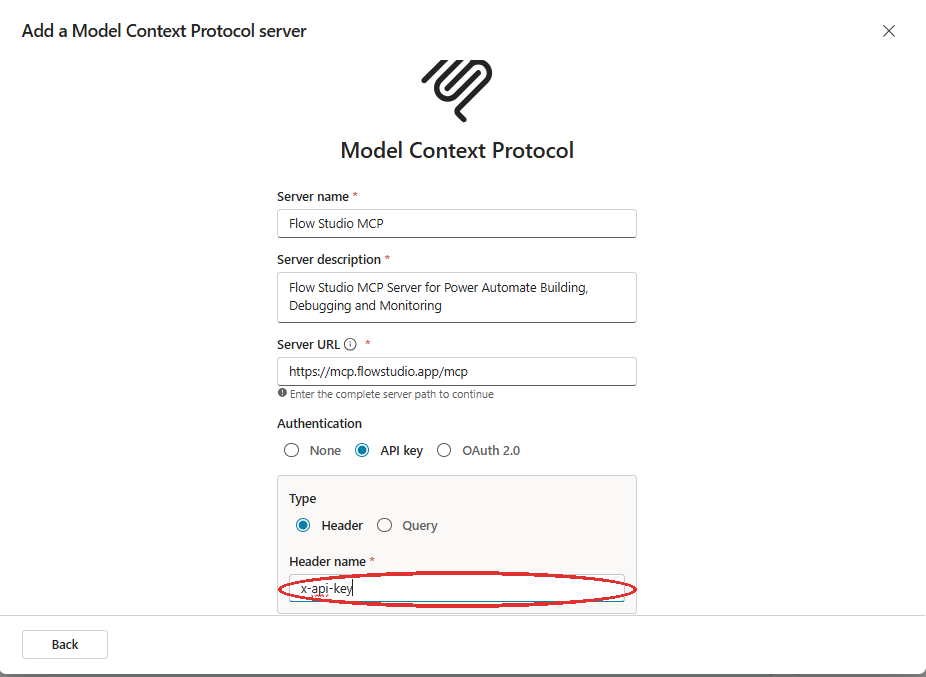
Figure: The MCP server form: header name x-api-key (lowercase with hyphen) is the most common setup mistake.
API key is free to try (100 calls, 21 days, no credit card). Details including the test step and the x-api-key gotcha: getting-started guide.
A real debug session with the tool calls visible
I tested this on a Power Automate flow I actually use. It's an RSS monitor that pulls from four feeds: r/PowerAutomate, r/PowerApps, r/CopilotMicrosoft, and the Stack Overflow power-automate tag. Four parent flows, one per feed. When a post mentions a keyword I care about, the flow pings me. I use it to find Power Automate questions worth answering.
This week a few of the parent flows went quiet. No new posts surfaced. So I opened the Copilot Studio test pane (which shows the agent reasoning trace, unlike the production M365 Copilot app which hides it) and typed one prompt:
Some of the parent flows have not been triggered. It could be that the RSS URL is incorrect. Can you investigate?
The agent worked through the investigation in three stages, with every MCP tool call visible in the reasoning sidebar:
- Called
list_live_environmentsand returned a list of 9 Power Automate environments connected to my tenant. Asked me which one to investigate. I picked Flow Studio Default. - Called
list_live_flowsto filter by name and find the Forum Monitor parent flows. Then calledget_live_flowon each one to read the RSS trigger configuration. - Called
get_live_flow_runsper parent flow to pull the recent run history and build a verdict table.
Then it printed a table, one row per parent flow. The working ones looked like this:
rPowerAutomate: 1 feed item processed, last run Apr 10 17:08 UTC. Working fine.
rCopilotMicrosoft: 2 feed items processed, last run Apr 10 17:08 UTC. Working fine.
Stack Overflow power-automate: 1 feed item processed, last run Apr 10 01:47 UTC. Working fine.
The agent then flagged three issues across the other flows:
- Reddit Index Monitors: private authenticated RSS feed. The RSS URL pointed to a private Reddit feed requiring an OAuth token. The RSS connector does not support authenticated requests, so the trigger never fired. The agent recommended switching to the Reddit API with OAuth.
- Stack Overflow: wrong tag in the RSS URL. The feed was pulling from the
power-automatetag, but the primary Stack Overflow tag ismicrosoft-power-automate. The wrong tag had very few questions, explaining why the flow only ran once in three days. The agent offered to update the URL to the correct tag. - YouTube Reps: possibly inactive channel. The RSS URL format was technically correct, but YouTube throttles RSS from server-side scrapers, and the channel may not have published new videos since the flow was created.
Three different root causes, each traced from the run history into the trigger configuration and back to the source. The Stack Overflow finding was the most subtle: the agent cross-referenced the RSS feed tag against actual Stack Overflow tagging conventions and found a mismatch that a manual inspection would likely have missed.
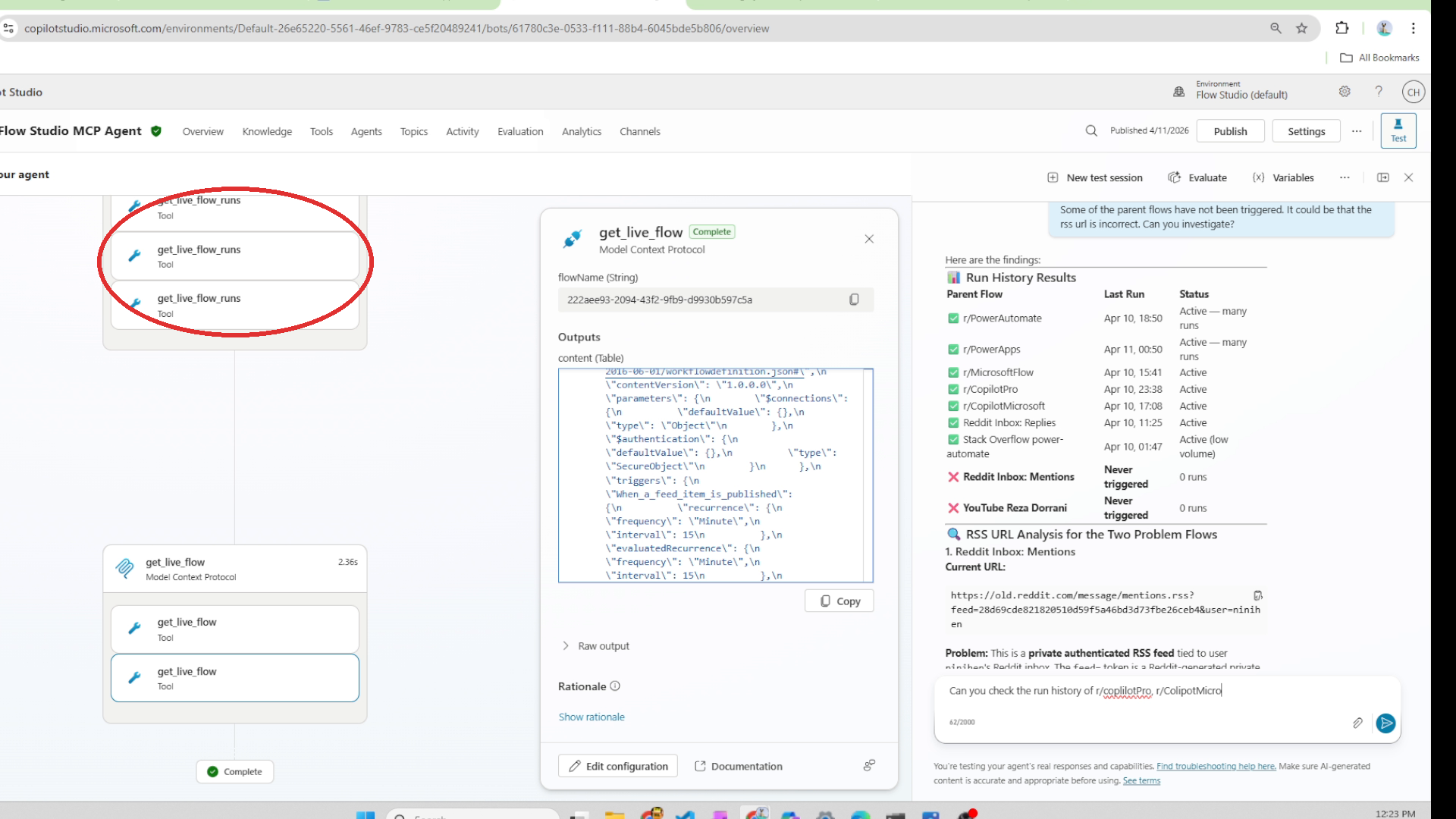
Figure: The Copilot Studio test pane: MCP tool calls (get_live_flow, get_live_flow_runs) visible in the reasoning sidebar, alongside the verdict table.
Three MCP tools, three pieces of the puzzle, one conversation, about 30 seconds of real work. Without this, tracking down which parent flows were silent would have meant opening the Power Automate portal, switching into each of my 9 environments, filtering by flow name, checking run history by hand on every parent flow, opening each trigger configuration, and eyeballing the RSS URL. Probably 20 minutes of clicking for a 30-second diagnosis.
What end users see in the Microsoft 365 Copilot app
The debug session above happened in the Copilot Studio test pane, which is where makers verify the agent works before publishing. The test pane shows every tool call in the reasoning sidebar so you can watch the agent work.
End users don't see the test pane. They see the published agent inside the Microsoft 365 Copilot desktop app: same agent, same prompts, same answers, different surface. The tool calls still run under the hood, but the reasoning sidebar is hidden by design to keep the experience conversational. What the user gets back is the verdict table and the root cause, inside the same Copilot chat they already have open.
No separate app to install. No browser tab to switch to. The Microsoft 365 Copilot app is available to M365 Copilot license holders. Once the agent is published to your tenant, it's one click away in the Agents section of the left rail.
Why this matters
Copilot Studio's built-in tools are great at what they're designed for: querying tenant data, answering employee questions, working with connectors. They weren't designed to debug Power Automate flows at the action-input level. That's a different problem and it needs a different tool.
MCP is how you add that tool without writing custom code. You point the Copilot Studio agent at an MCP server, the agent discovers the tools the server exposes, and Copilot calls them whenever a user's question needs them. The difference between plain Copilot and the demo above isn't intelligence. It's visibility. The visibility comes from the tool, not the model.
And this isn't a FlowStudio-specific story. Any custom MCP server works the same way. If you've built an internal API that your team wishes Copilot could call, you can wrap it as an MCP server and plug it in the same way I plugged in FlowStudio MCP. The work Microsoft did with MCP support unlocks a lot of doors.
What Copilot Studio can see through FlowStudio MCP
To give you a sense of what becomes available to your Copilot users the moment you connect the server:
| Capability | Example question a user can now ask Copilot |
|---|---|
| Environment inventory | "Which Power Automate environments do we have access to?" |
| Flow run history | "Did the invoice sync flow run successfully this morning?" |
| Per-action errors | "Why did my HR onboarding flow fail at 9:15?" |
| Action input/output data | "What did the RSS trigger see on the last run of the monitor flow?" |
| Trigger configuration | "Show me the RSS URL configured on the trigger" |
| Flow definitions | "Show me the trigger and actions in the Purchase Order Approval flow" |
| Connection health | "Is the SharePoint connection on the finance flow still working?" |
| Flow state control | "Disable the broken flow until I fix it" |
The additive framing
There's been a lot of chatter lately about what Copilot Studio "can't do" for Power Automate. Some of it is fair criticism. Most of it misses the point that Microsoft built the extension hook on purpose. MCP support is the mechanism for plugging in exactly the capabilities the built-in agent doesn't have.
The story isn't "Copilot Studio is bad at Power Automate, use something else." The story is "Microsoft shipped the extension point, and here's what you can plug into it." FlowStudio MCP is one option. The pattern works for any MCP server.
Marcel Broschk said it well in his recent Featured post: "Claude + Microsoft is not a battle of brands. The future is Claude AND Microsoft used intentionally." I think the same applies here. The interesting work happens at the intersection.
Try it in your tenant
If you want to try this in your own tenant this afternoon:
- Get a FlowStudio MCP API key at mcp.flowstudio.app. Starter plan is free, 100 calls included, no credit card.
- Follow the Copilot Studio section of the Getting Started guide, or just replay the 5 steps above.
- Publish the agent to your tenant. You decide who has access via the normal Copilot Studio permissions.
- Test with a real flow. Ask the agent about any flow you want to understand and see what it returns.
About FlowStudio MCP: FlowStudio MCP is a Model Context Protocol server that gives AI agents action-level visibility into Power Automate. It's listed on GitHub's awesome-copilot, the curated collection of recommended skills for AI coding agents. Works with Microsoft Copilot Studio, GitHub Copilot, Claude, and any MCP-compatible agent.
Related reading:
- Getting Started with FlowStudio MCP
- Debugging Power Automate Flows with an AI Agent
- The Dictionary Pattern for AI-Built Power Automate Flows
Catherine Han, FlowStudio